Target element to display explanation.
Help
Simple guides for common tasks.
How the app works
This scene shows how a room, stands, marked boxes, AI item scan, and an unmarked box fit together in one storage flow.
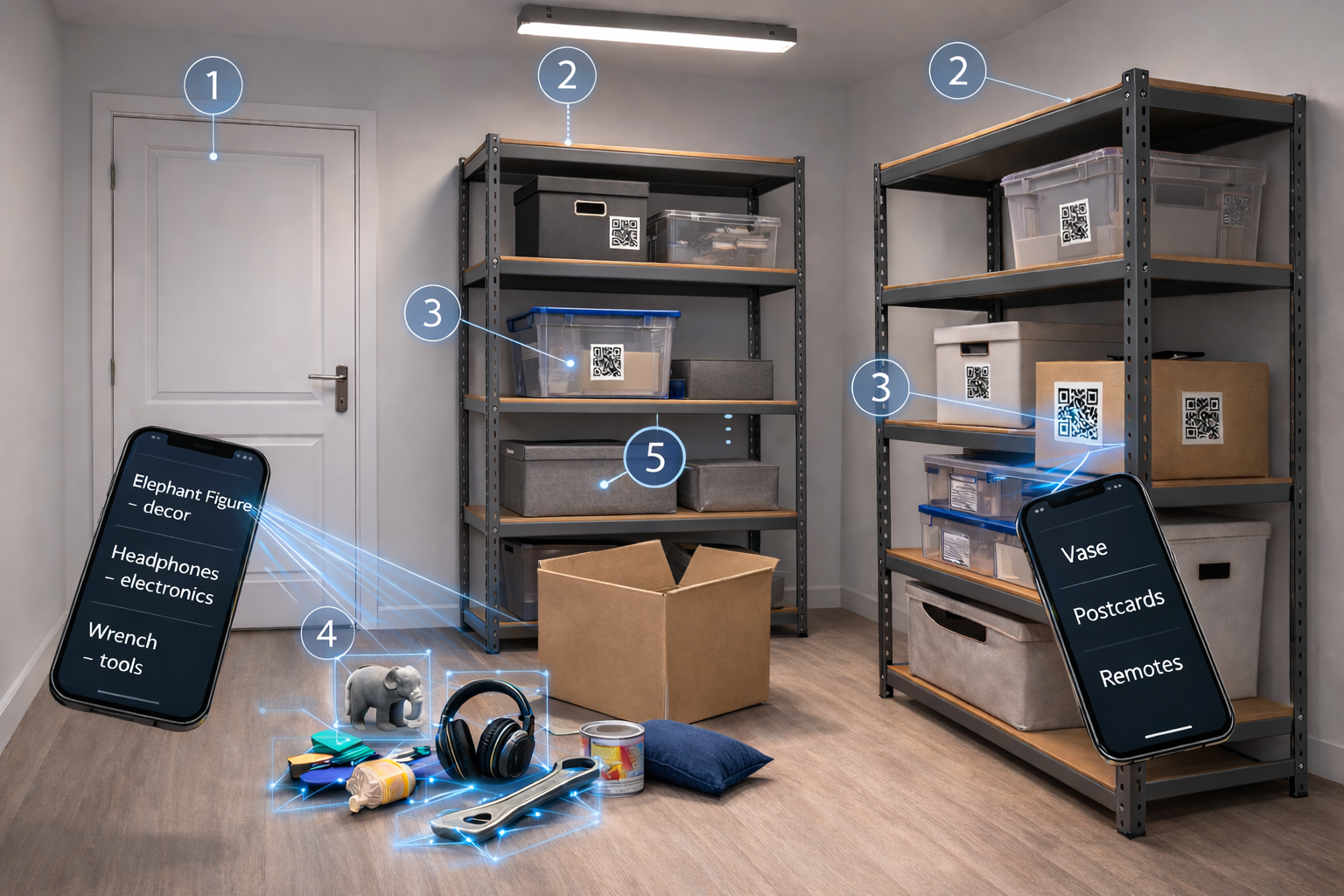
Hover, focus, or tap a numbered marker to see the explanation.
How storage structure works
Use this map to understand where data belongs.
Structure Map
Household
  -> Room
      -> Stand
          -> Container
              -> Nested Container
                  -> Item
                      -> Category
- Start from a Room.
- Create a Stand in that Room when needed.
- Create a Container in that Room or on a Stand.
- Add Items inside Container and choose Category.
Add multiple items with AI scan
AI scan helps you add many items quickly. Item scan types are Auto-detect, Books, Electronics, Kitchenware, and Cloth, and categories can be detected when enabled.
- Open a Container and choose Add Item.
- Use the AI scan action in the item form.
- Choose Auto-detect, Books, Electronics, Kitchenware, or Cloth based on what you are scanning.
- Scan the objects and review detected names.
- When AI category detect is enabled, confirm suggested categories.
- Save to create items in the current Container.
AI possibilities
AI can identify items and also suggest stand and container name, type, and color.
- Open AI camera from stand, container, or item flow.
- Capture the stand or container view to get name/type/color suggestions.
- Capture items to get item names and category guesses.
- Review and edit suggestions before saving.
Find items with search and scan
Use both digital search and physical scanning for fastest results.
- Use the top search bar to find by name or category.
- Open result and check where the item is located.
- If you are near storage, scan container QR to open exact Container page.
- Verify item status and mark taken/returned when needed.
Pack Container Flow (all-in-one)
Pack flow combines AI container recognition and AI item scan so placing is easier.
- Start Pack Container Flow from container actions.
- Run AI container recognition to prefill container details.
- Run AI item scan to add many items quickly.
- Review best-guess categories and adjust if needed.
- Save and continue to QR steps.
Pack nested containers
Use nested containers when one box contains another box.
- Create parent Container first.
- Inside parent, choose Add nested Container.
- Add items to each level where they physically belong.
- Print or scan QR codes so each level is easy to open later.
Configure Household
Keep household setup simple so everyone works in the same context.
- Set household name and preferred language.
- Choose theme and max QR per page.
- Enable AI options and confidence level if needed.
- Ask members to use the same structure and naming style.
Invite people to your household
Household owners can send invitation links from Settings.
- Open My Settings and choose Manage Invitations.
- Add one email per line, choose a language, and send the invite links.
Join from an invitation link
Invited people can join the existing household directly from the email.
- Open the one-time link from the invitation email.
- The app creates the user, signs them in, and connects them to the household.
Managed AI scans vs your own API key
Choose between household-managed access or your own OpenAI key.
- Managed mode: admin provides a key and sets scan quota for the household.
- When managed mode is active, Household settings show remaining scans.
- Personal mode: enter your own OpenAI API key in Household settings.
- After saving your key, scans use your key and managed quota no longer limits scans.
- Costs and usage in personal mode are billed to your OpenAI account.
Support and product updates
Logged-in users can contact support from the app, and we may sometimes email product updates.
- Open Support from the app when you want help with bugs, ideas, translations, or account requests.
- Use support when you need limits reviewed or a workflow explained.
- We may also send occasional product updates by email, alongside required service and account messages.
Extra tips
Small habits that keep inventory clean.
- Use clear item names.
- Keep categories consistent.
- Archive items you no longer store.
- Use QR labels on real containers.